Enable security keys for Windows sign-in
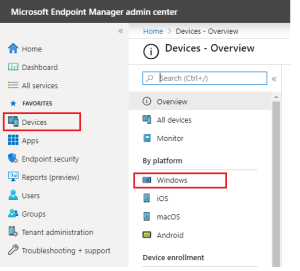
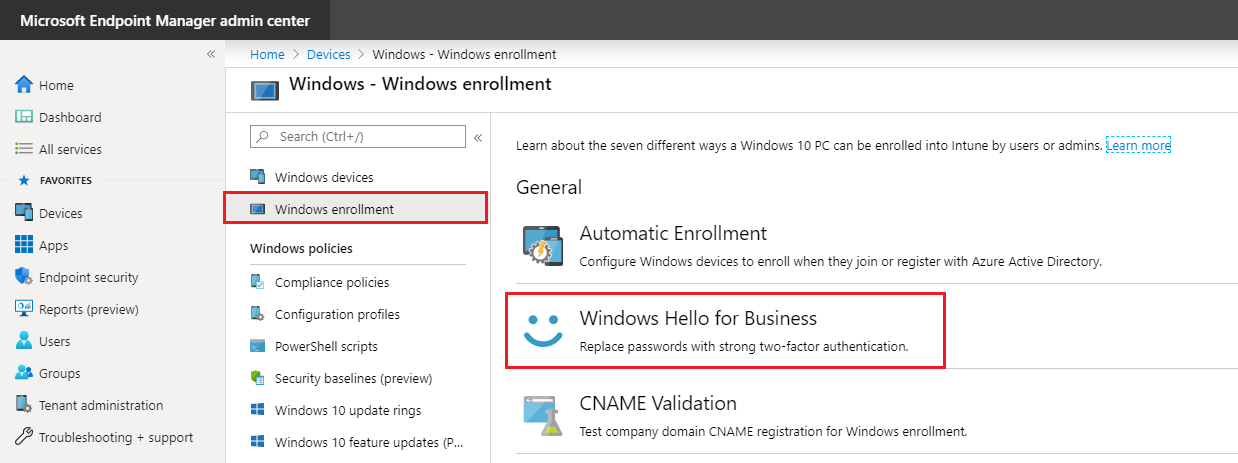
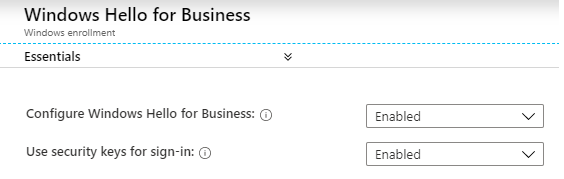
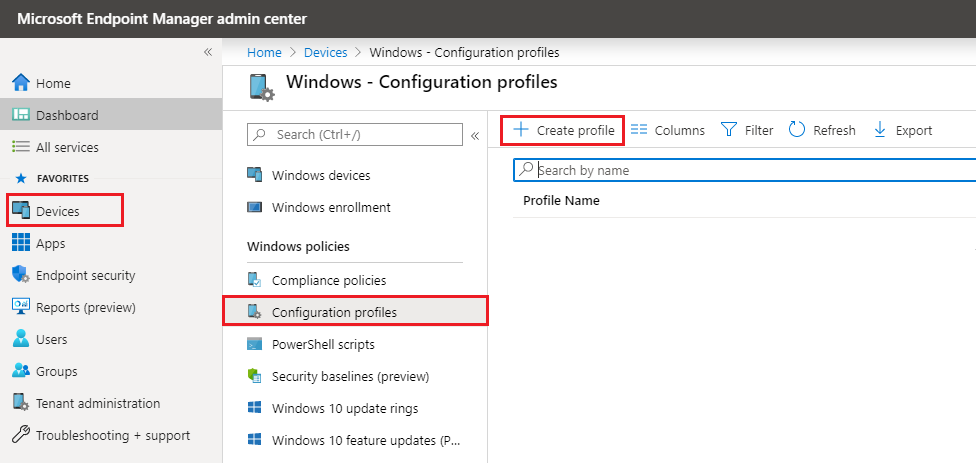
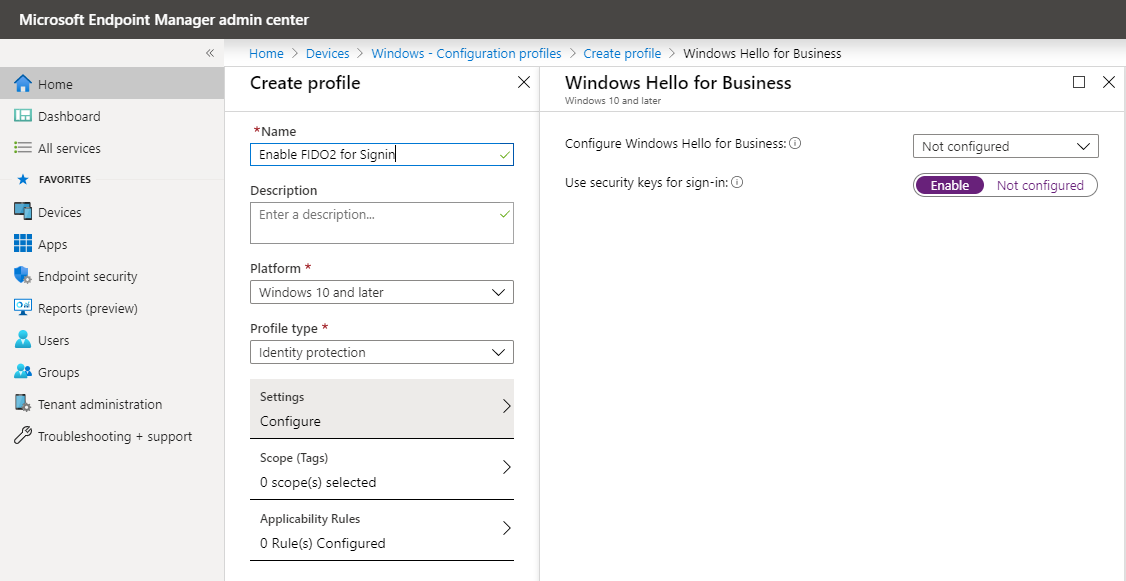
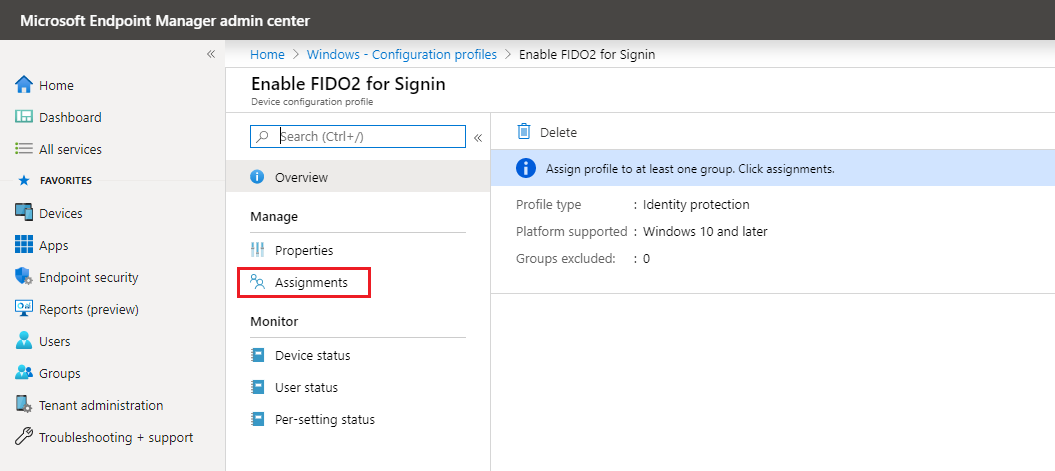
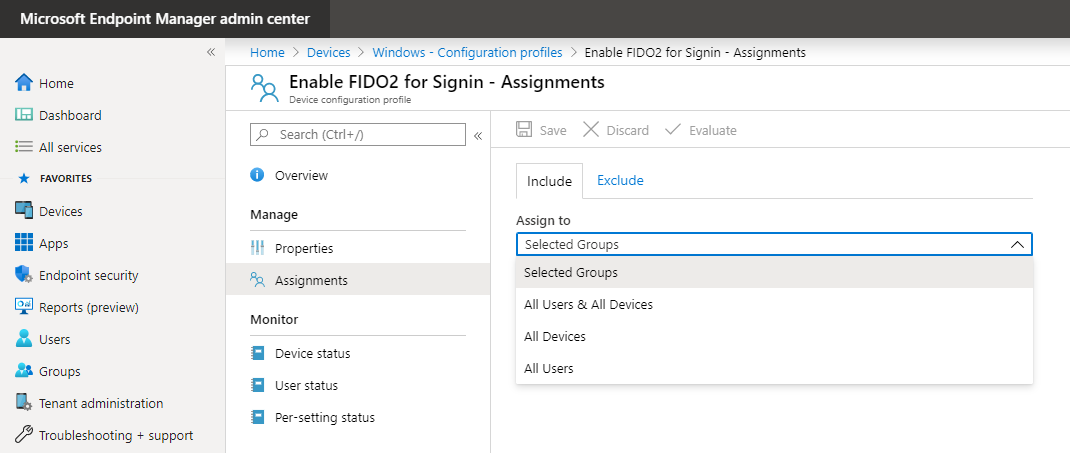
(1) for all users - a tenant wide Windows Hello for Business setting for all users (2) for a group of users - an Identity Protection configuration policy for a group of users Open a browser and sign-in to the Microsoft Intune portal. The advantage of using a configuration policy is that you can assign it to a group of users instead of all users. A new policy Enable FIDO2 for Signin has been successfully created. The next step is to assign the policy to the security group of choice The second step is to enable combined security information registration. The feature needs to be enabled from the Azure (AD) Portal. The third step is to enable FIDO2 security keys as Authentication method in Azure Active Directory. Option 1: Tenant wide for all Users
Option 2: Identity Protection configuration policy
Enable combined security information registration
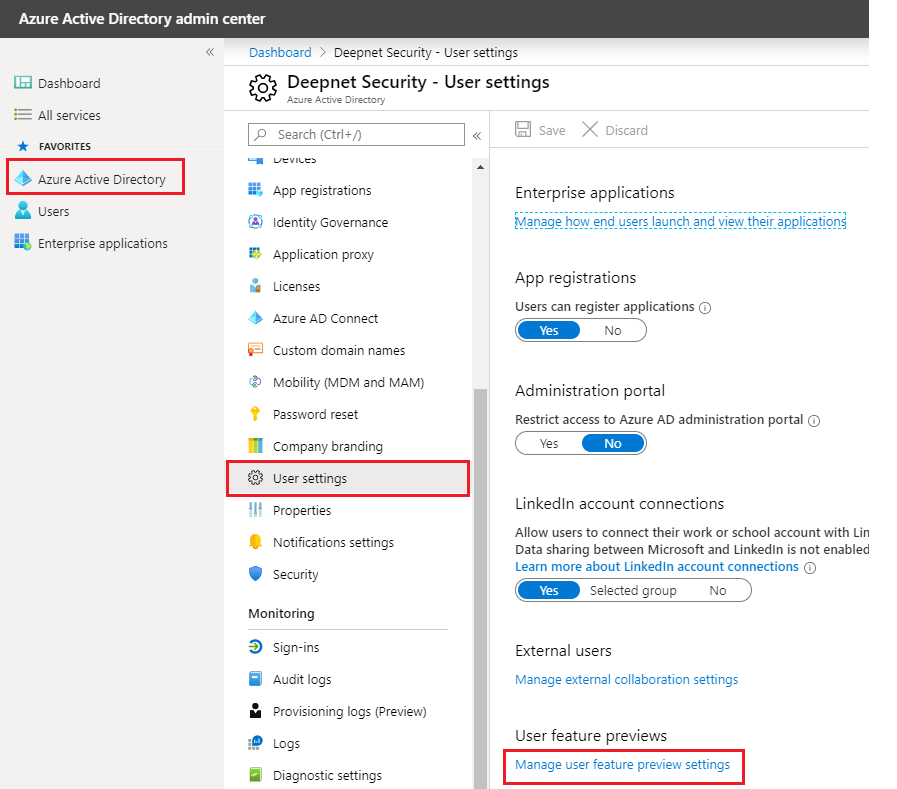
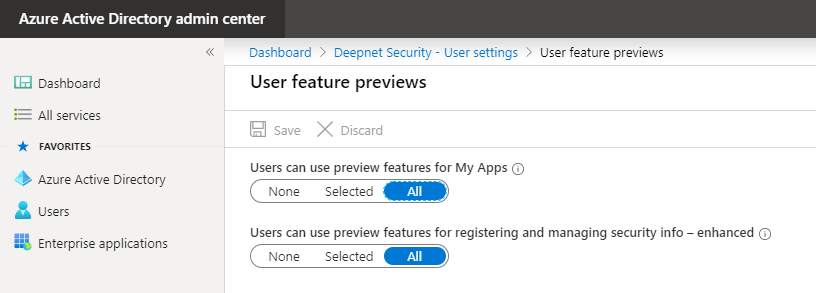
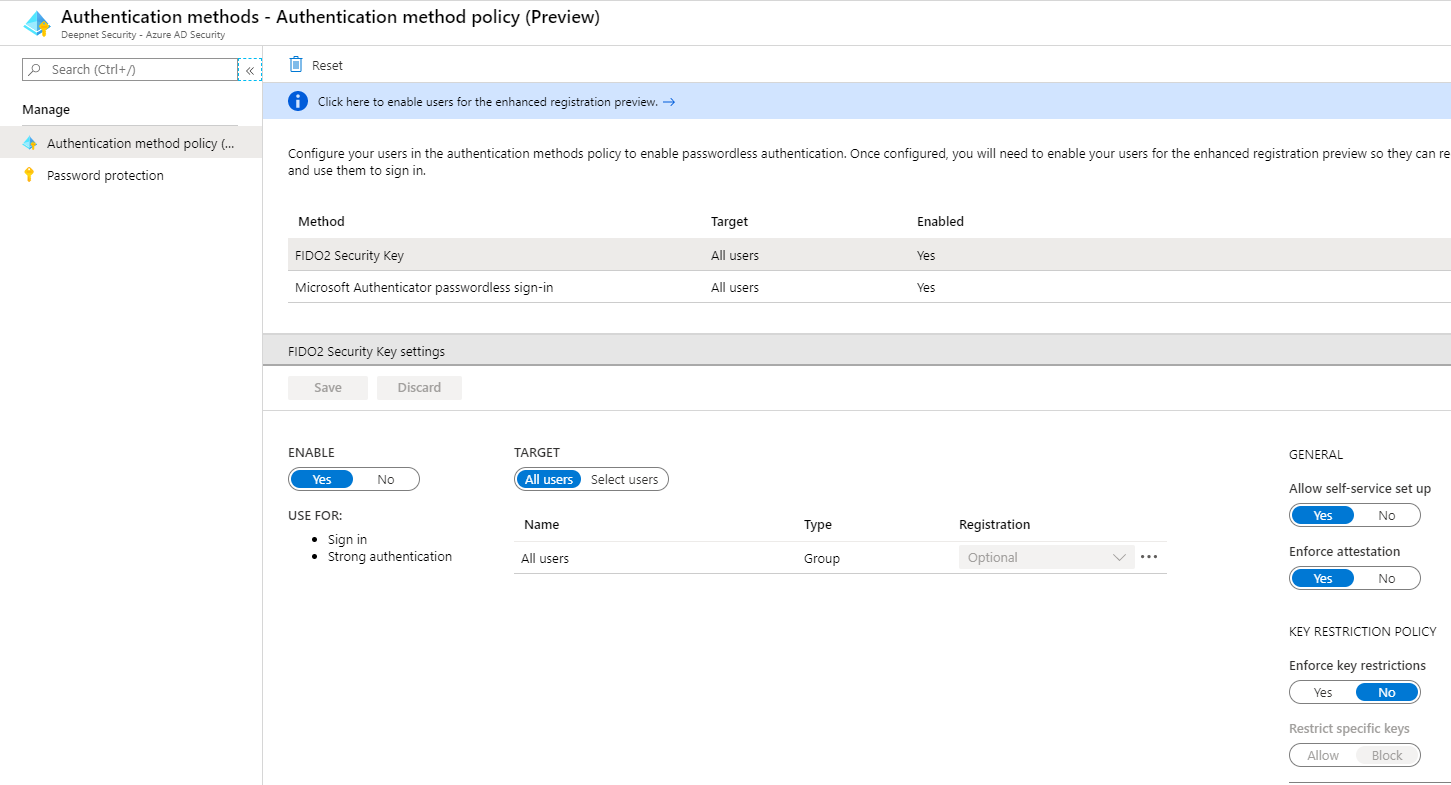
Enable FIDO2 security keys as Authentication method
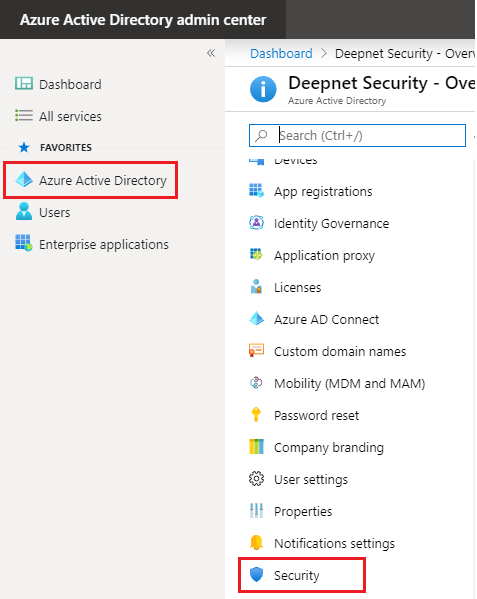
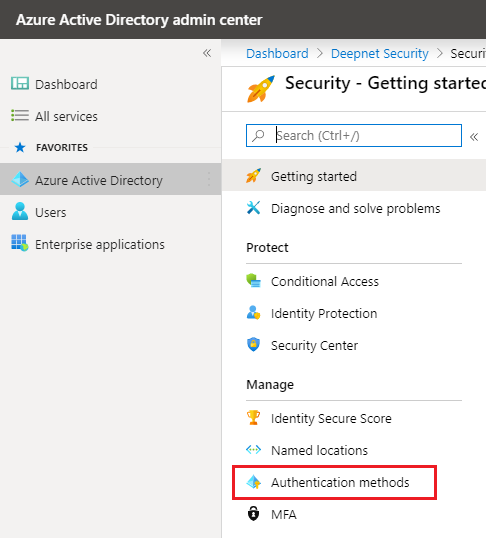
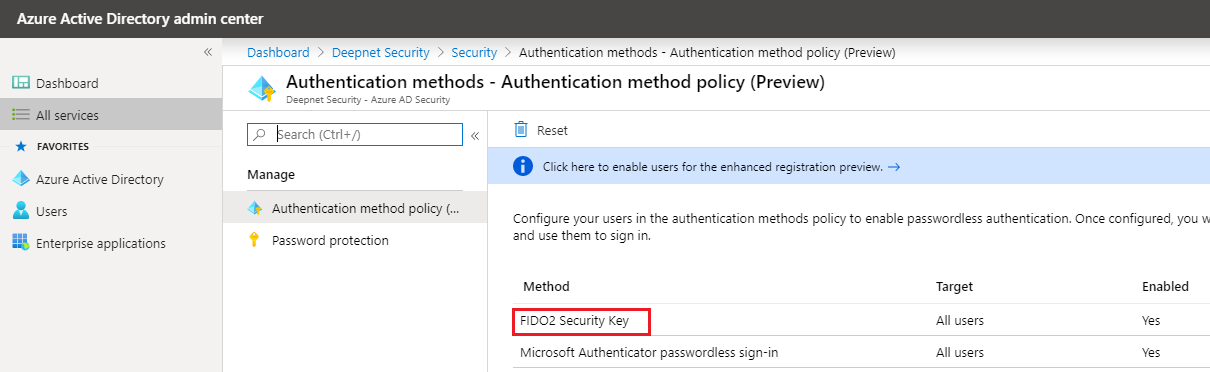
Register FIDO2 key in Azure AD account
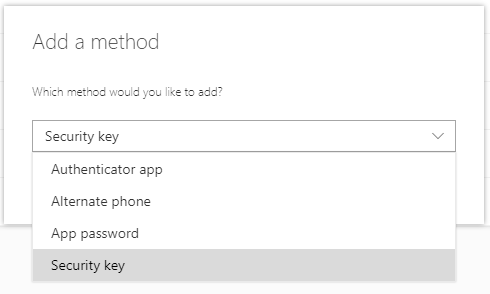
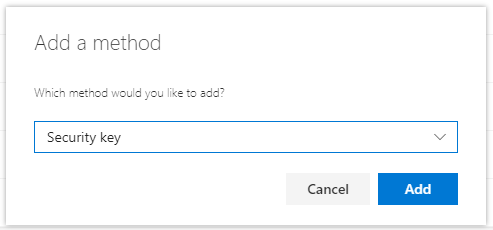
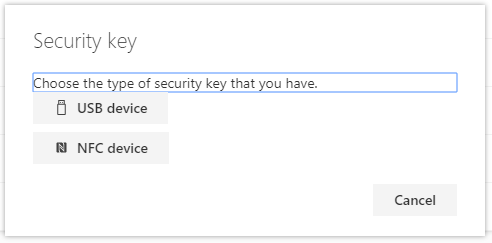
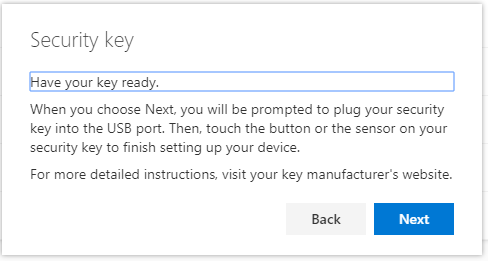
First, make sure your browser (like Edge, Chrome, Firefox) supports WebAuthn. Under Security info click Add method. Pick Security key from the drop-down list and click Add. Select USB Device. Click Next. Insert the FIDO2 security key. Follow the instructions described in the new window. Create a PIN for this security key and enter the PIN a second time. Click OK. Touch the Security key. Give your security key a Name, so you can identify your key, and click Next. You`re all Set! Registration of the security key is finished. The security key is listed as one of the sign-in methods.
Then, navigate to the following link, and sign in.
https://mysignins.microsoft.com/security-info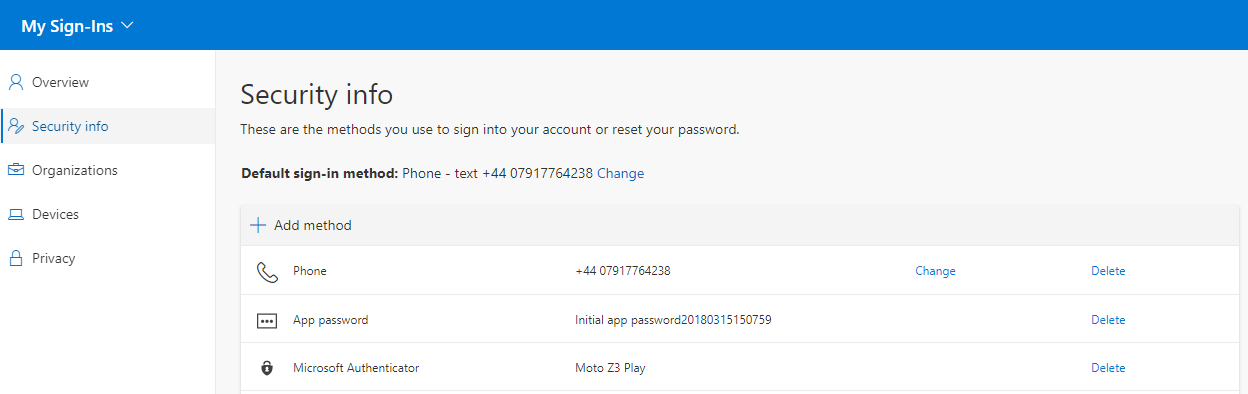
Your PC will redirect you to a new window to finish setup.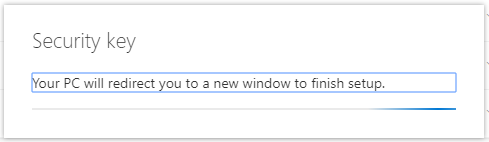
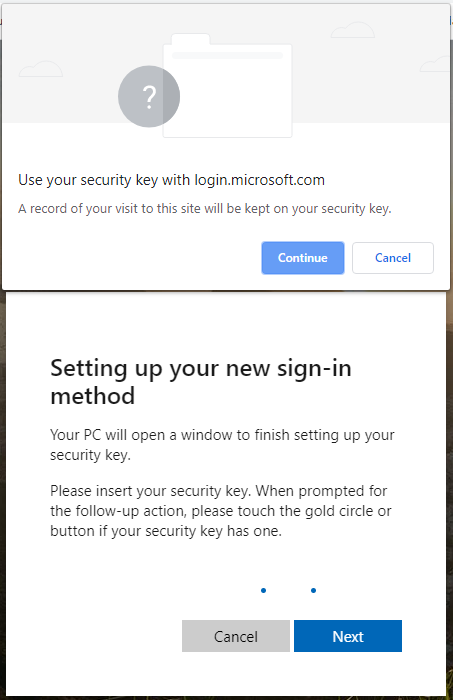
Click Continue in the pop-up screen.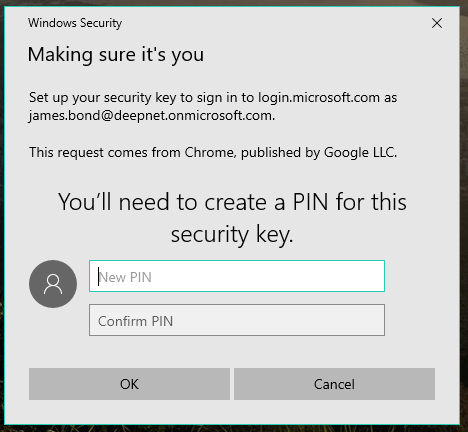
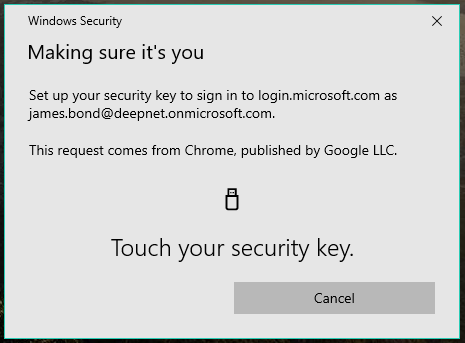
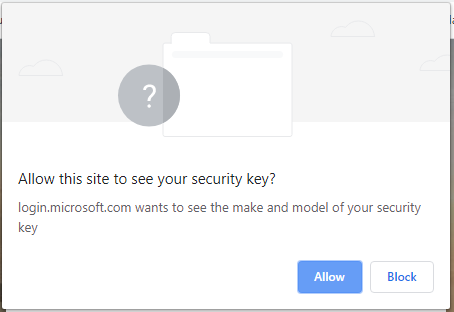
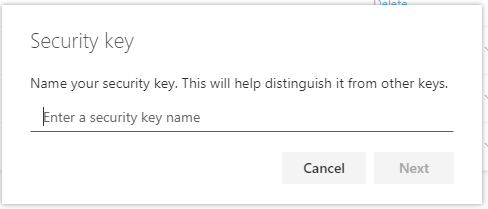
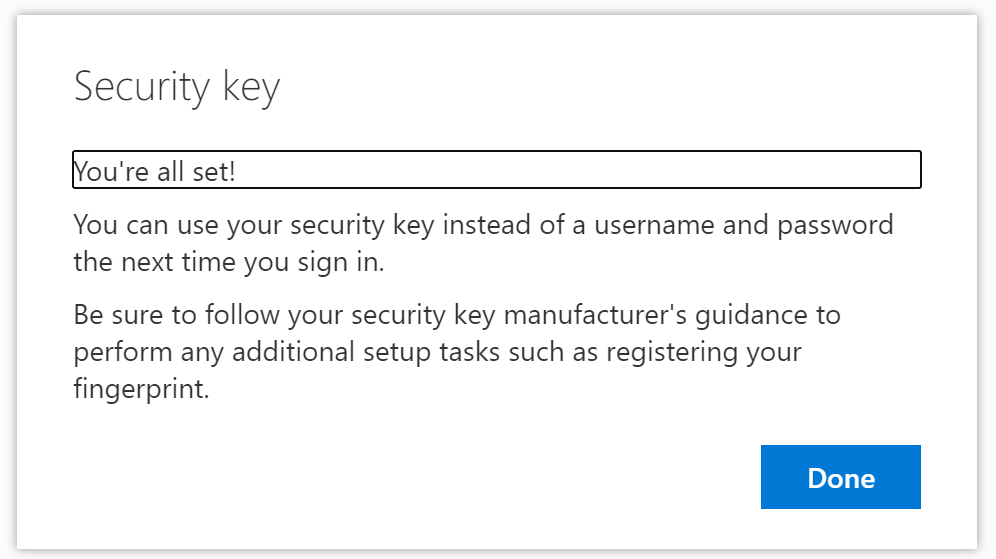
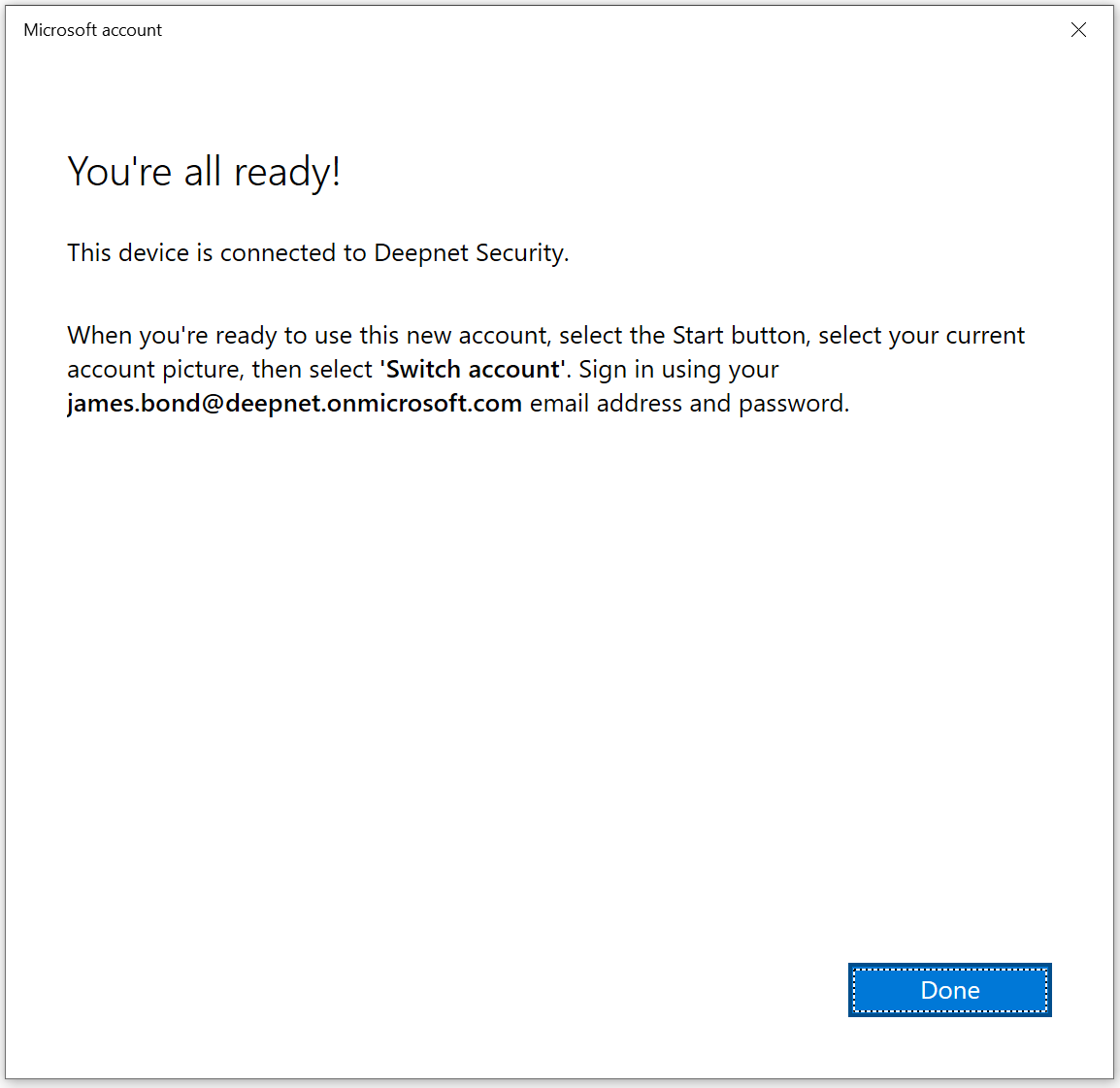
Click Done.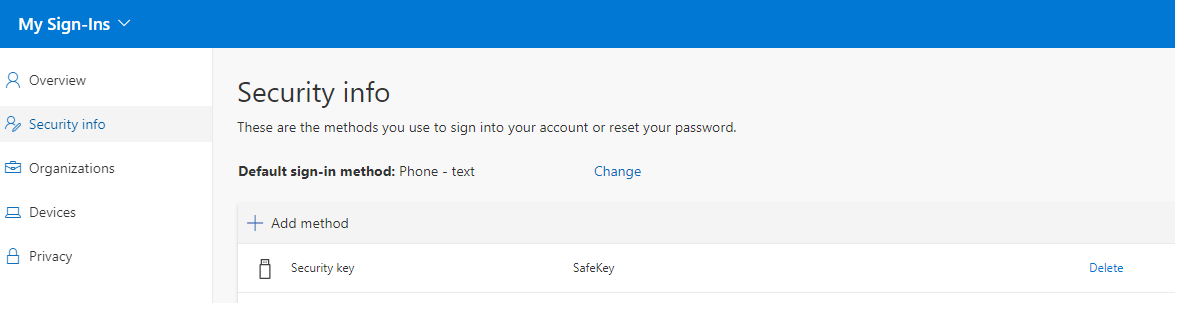
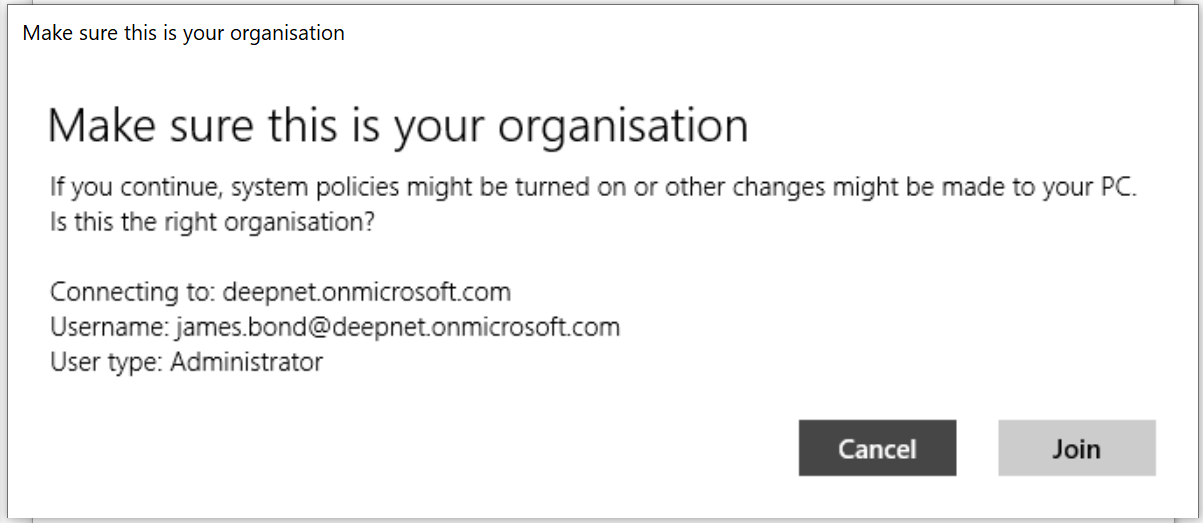
Join Windows 10 computer to Azure AD
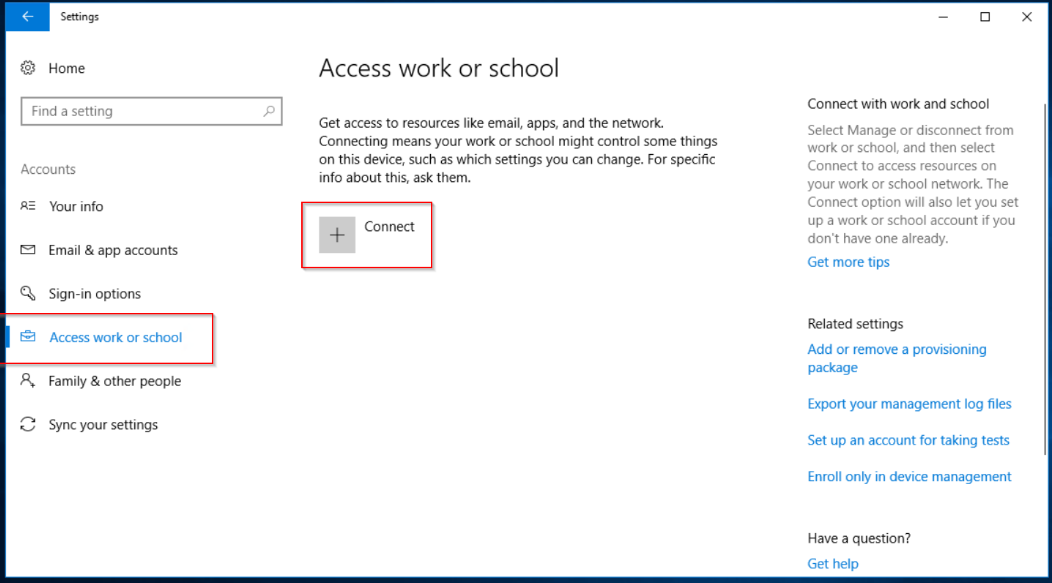
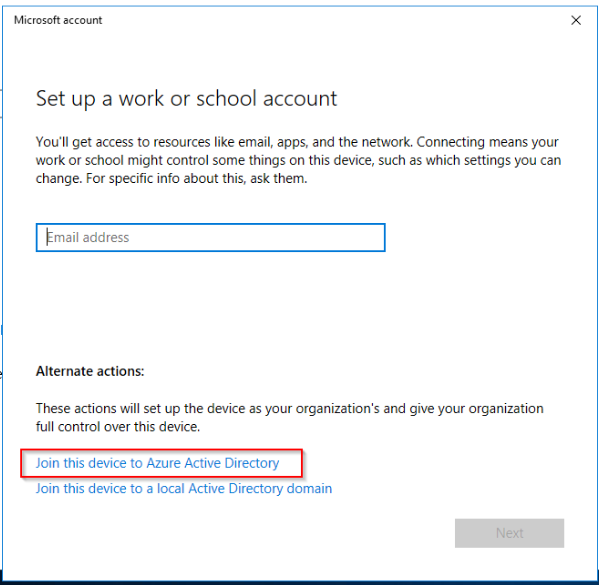
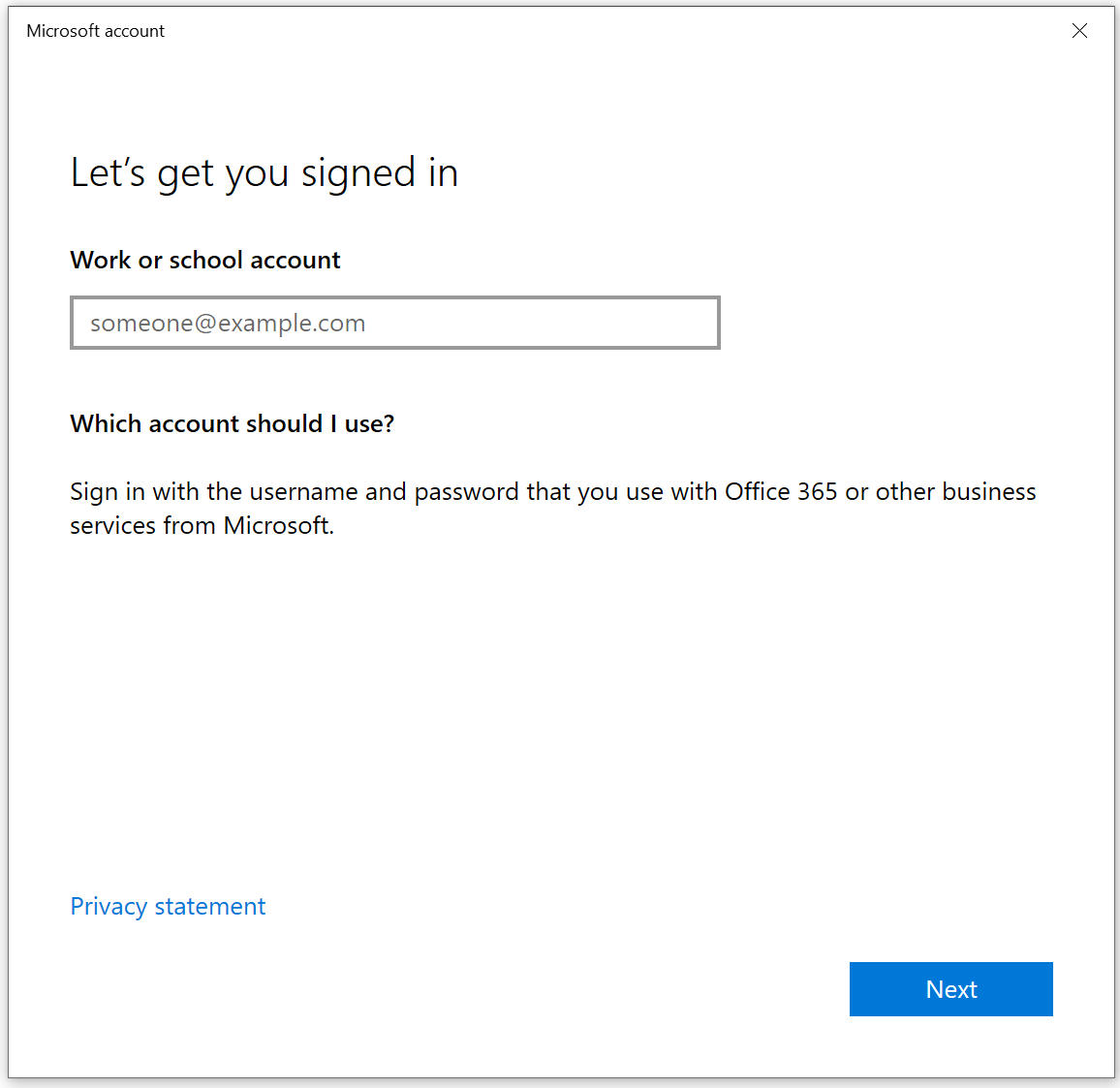
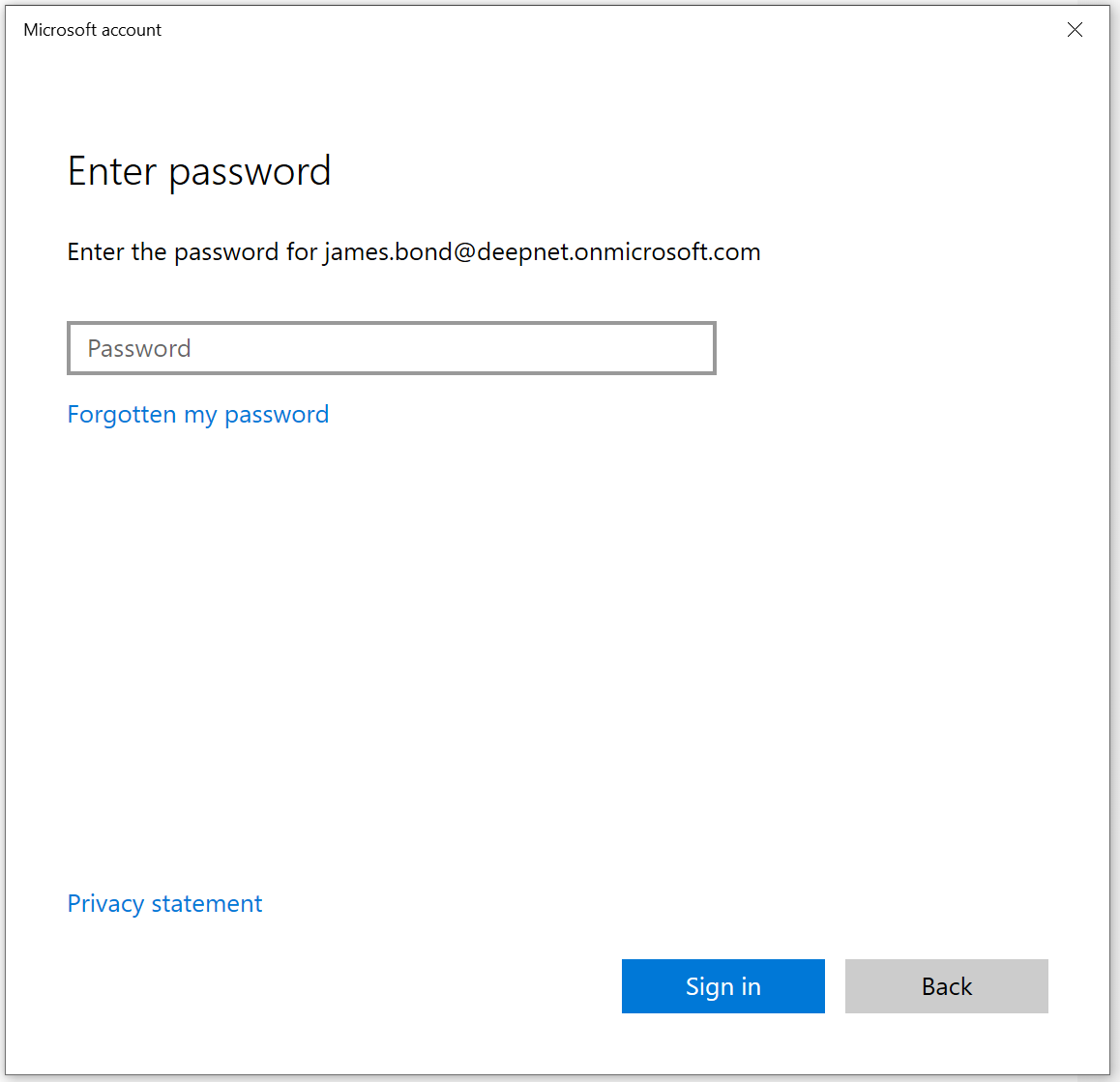
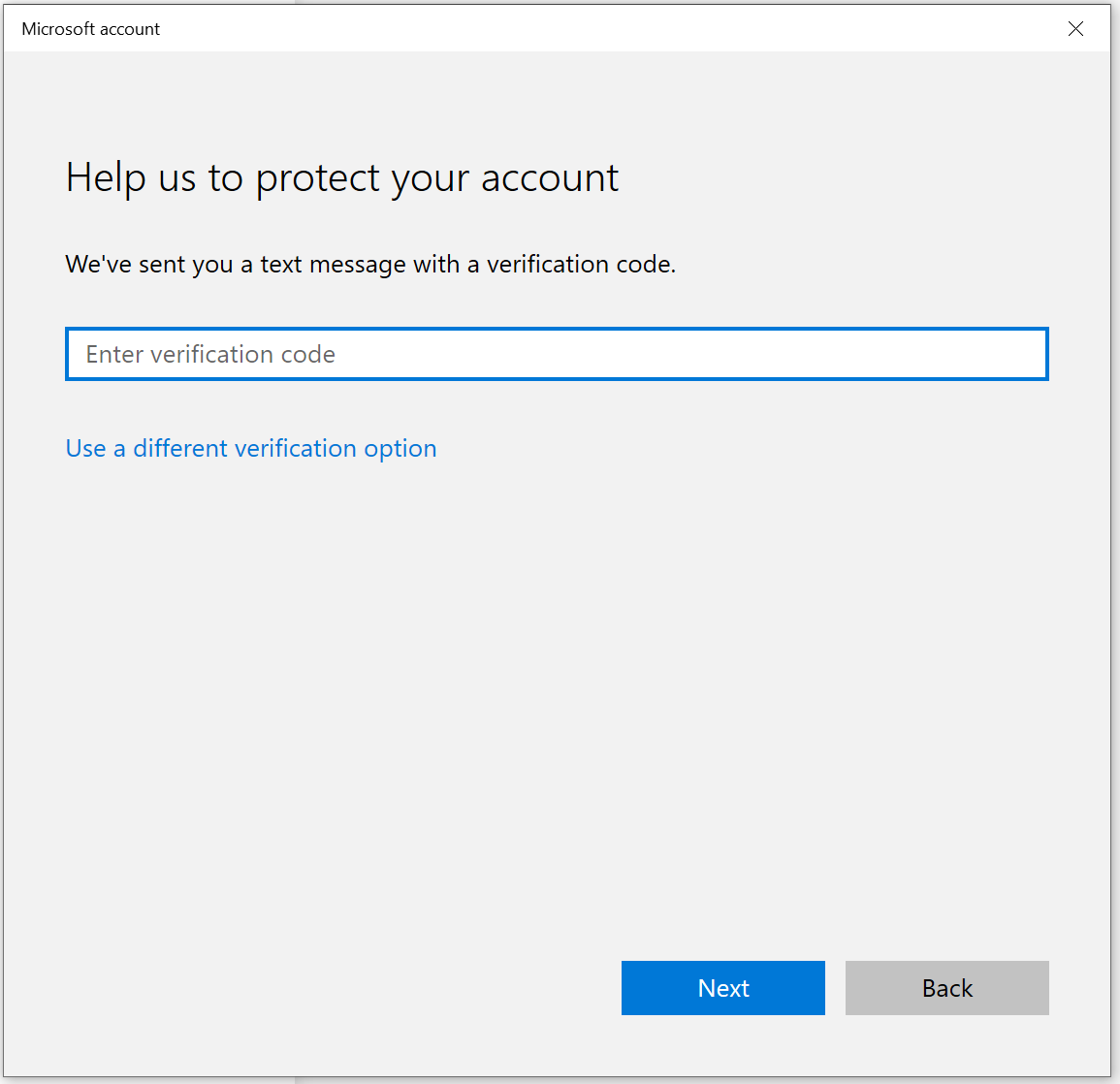
Open Settings Click Accounts Click Access work or school and press Connect. Click Join this device to Azure Active Directory Enter your email address and press Next Enter your password, press Sign in Enter the verification code Click Join Click Done, and your computer is now joined to Azure AD.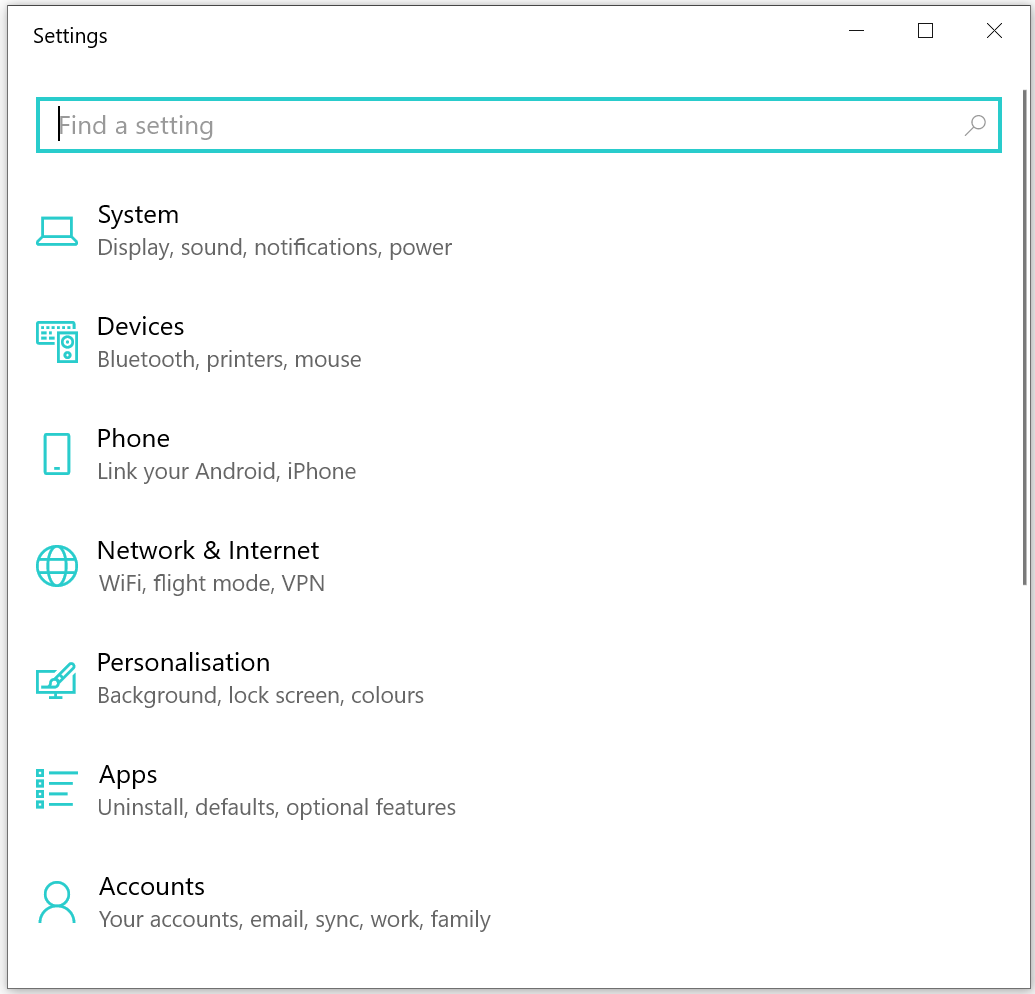
Sign in Windows 10 computer with FIDO2 key
When you click on Sign-in options on the login Window, the new option is shown. In the middle we now have the security key icon.
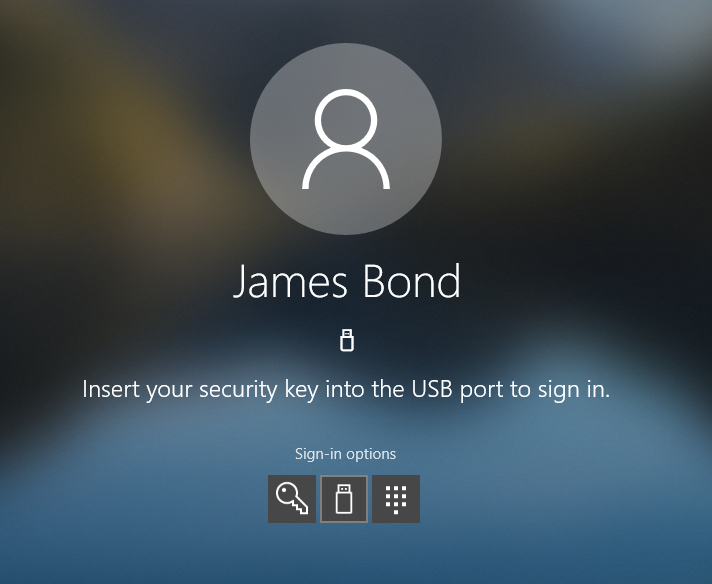
When you click on the security key icon, you are asked to insert the key.
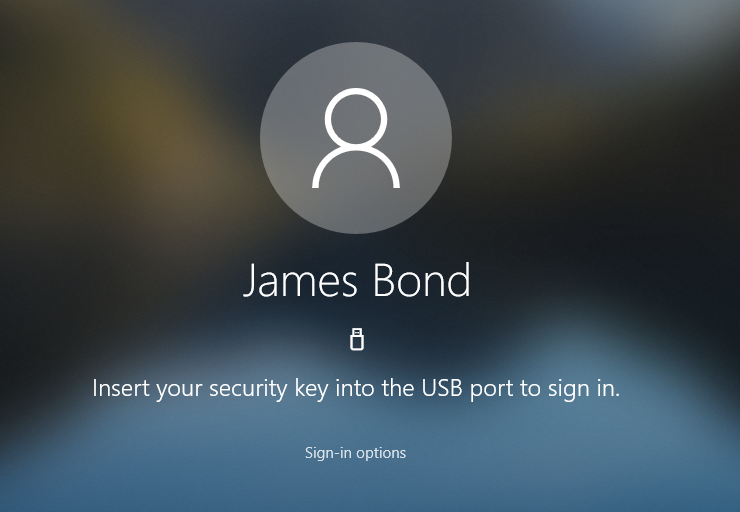
When you insert your FIDO2 security key, you are prompted to enter your PIN code.
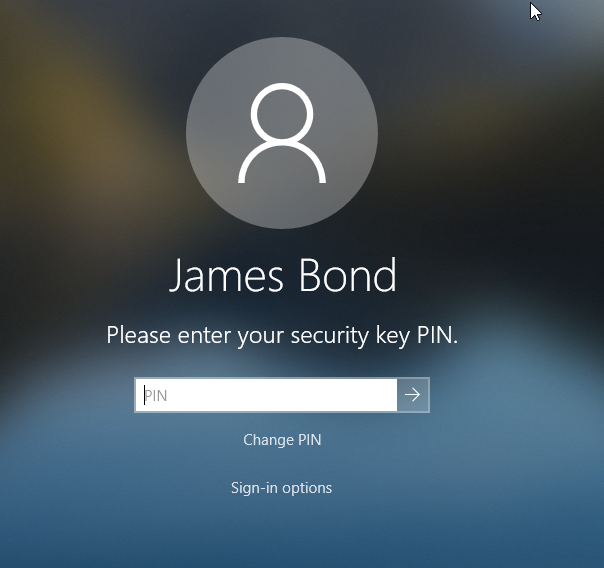
After entering your PIN, you are asked to touch your key.
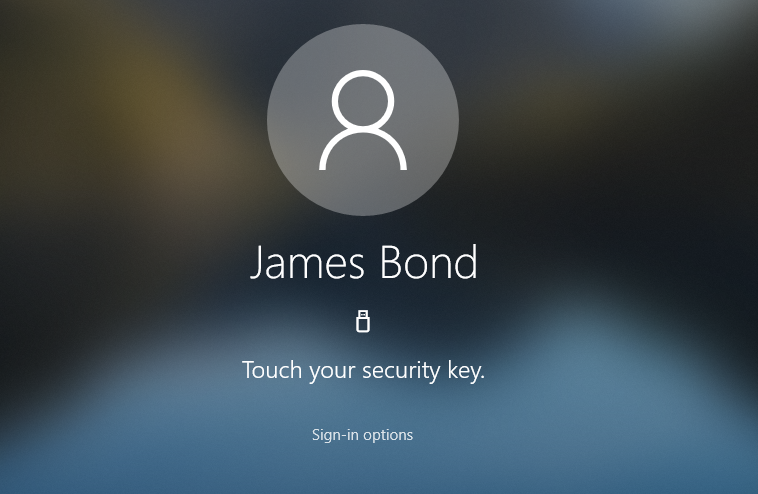
Touch the key, and you are signed-in to your computer without providing your username and password!